Many people are afraid of the command line interface (CLI) in Linux. However, once one learns several commands (and after having installed the right software), one can do certain things that most Windows users believe impossible.
1. Steganography (cat, unzip)
Thanks to this post by ambition
here, I learned something I really wanted to do: hide a file inside a picture. I knew this was possible, but I never managed to learn how to perform the feat in Windows.
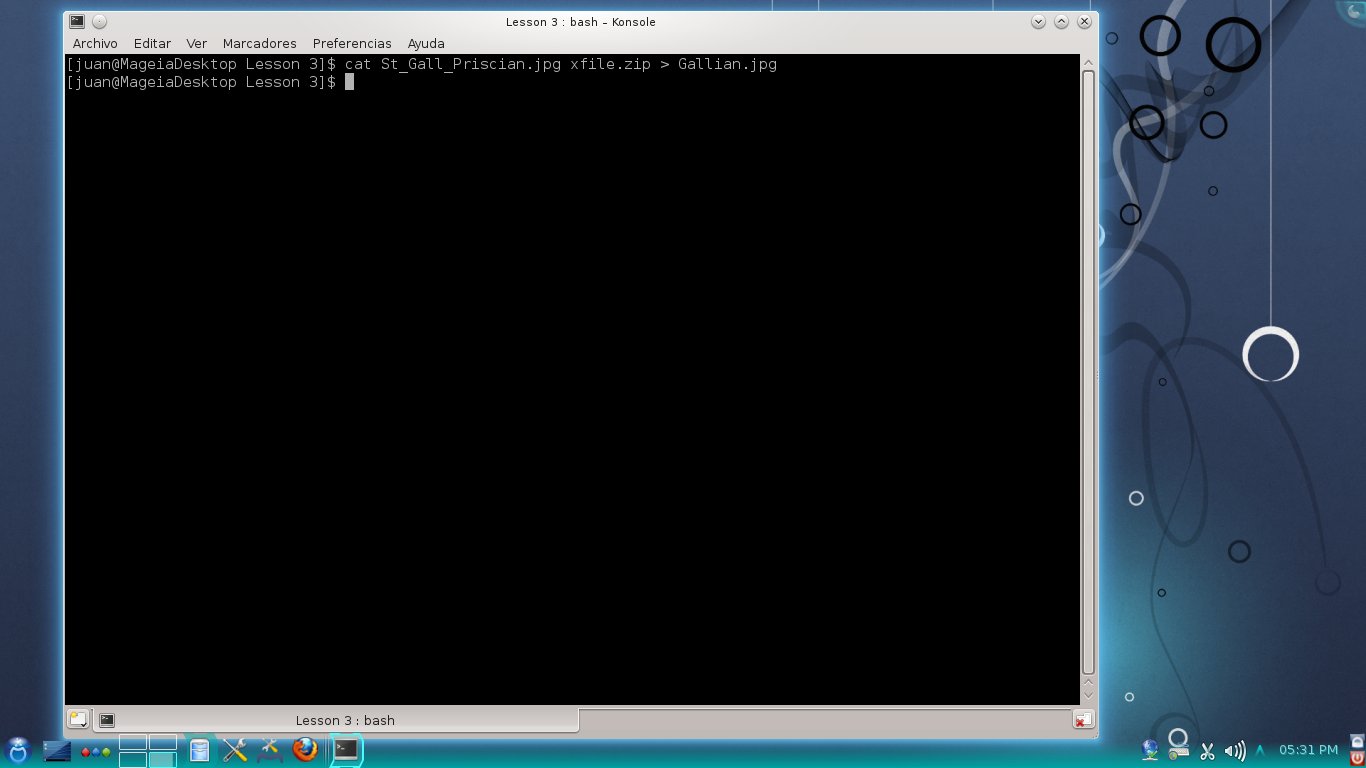
I discovered that it is truly easy in Linux. All you need is the command cat to join the files and the command unzip to retrieve the hidden file.
To begin with, you must have an image file (I used *.jpg, *.jpeg, *.png and the three work nicely) and your secret archive as a zipped file.
You use the command:
cat name_of_pic.jpg name_of_secret_file.zip > new_image_name.jpg
That's it! The new picture containing the secret file is created.
To get your hidden file back, simply use the command unzip:
unzip new_image_name.jpg
It is amazing how easy this is in Linux.
2. Playing Music (SoX)
Enock Seth post's
here and Megatotoro's quick induction were all I
needed to see konsole playing audio files. Since Mageia 3 includes SoX, I did not have to install it.
Basically, once you are in the directory containing the audio file, you use the command play and the name of the file:
play beowulfsarrival.mp3
and your file will start playing. To stop it, you must press CTRL + c once and twice to quit the program.
The ASCII rendition looks great, doesn't it?
3. Browsing the Web (Lynx)
I'm taking my first steps here. It is good to be able to browse the Web from konsole.
 |
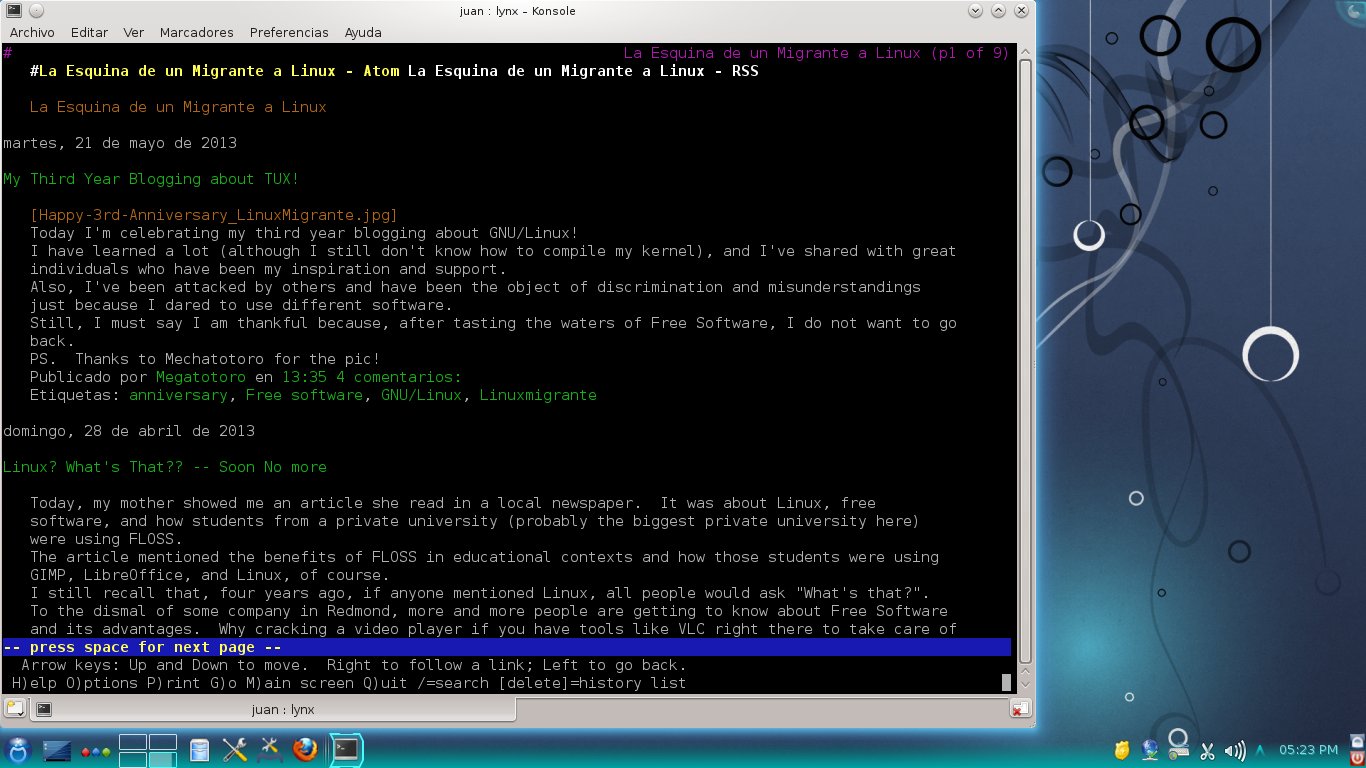
| Lynx displaying Megatotoro's blog |
(More information on Lynx
here)
With these tools, I practically can do all I need for a class if my GUI crashes... Of course, my poor Windows-only students might feel that the computer is possessed or something ;-)